
Customizable Home · full version
A workout tracker Home you arrange yourself
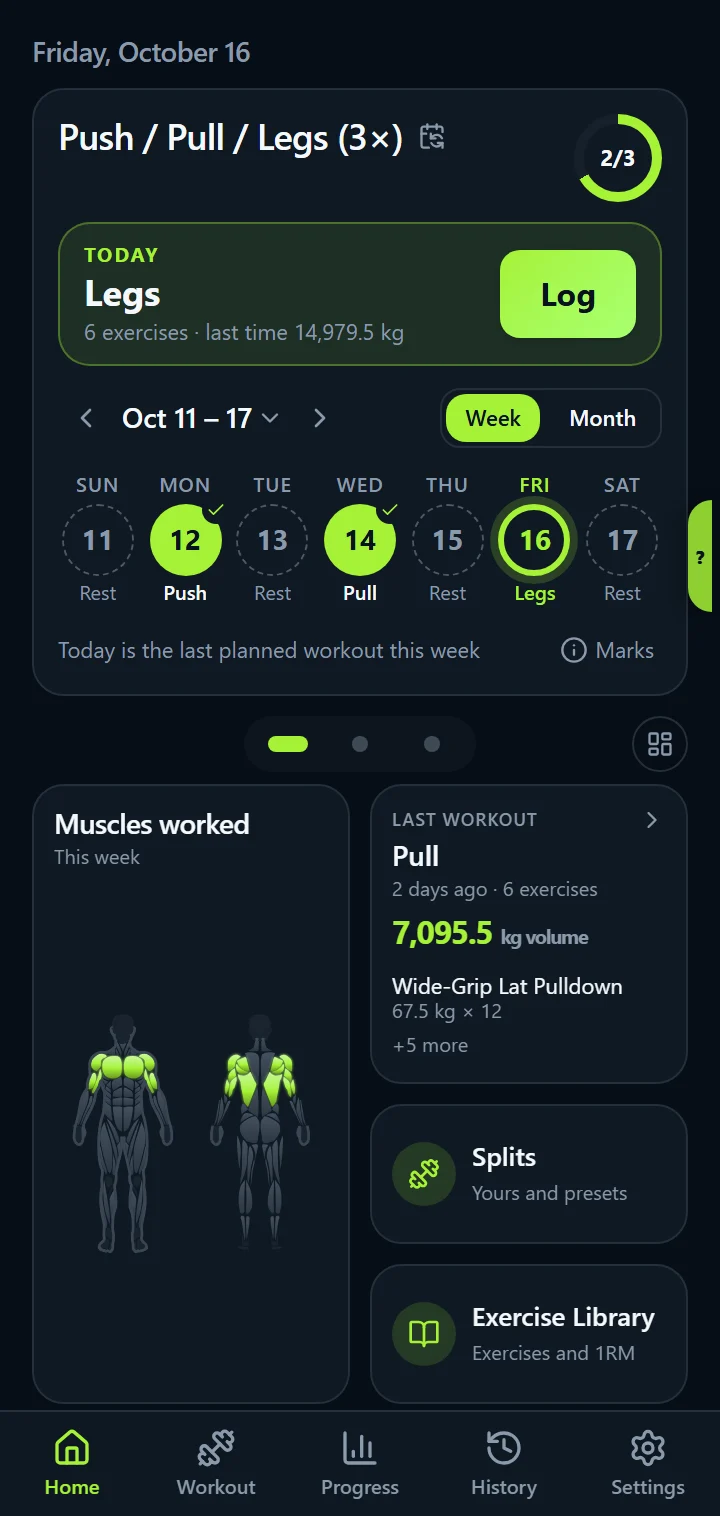
IronBuddy's Home has a calendar at the top and widgets below it: the muscles you worked this week, your last workout, a chart for any exercise, your personal records, Muscle Balance and more. Pick how the calendar looks, and in the full version decide which widgets you see, how big each one is and where it sits, across three pages that fit your screen without scrolling.
Last updated

7-day free trial, then €6.99 once · No subscription
Nine widgets, three pages
Every page of Home is a two-column grid that fills the space under the calendar. Out of the box, page 1 shows Muscles worked this week on a body map, your last workout and shortcuts to your splits and the exercise library. Page 2 has an exercise chart, your personal records, workout counts and body weight. Page 3 has Muscle Balance and volume per muscle.
The full version lets you change all of that. Add an exercise chart for every lift you care about, drop the widgets you never look at, and move the ones you check most to page 1.
Your calendar, five ways
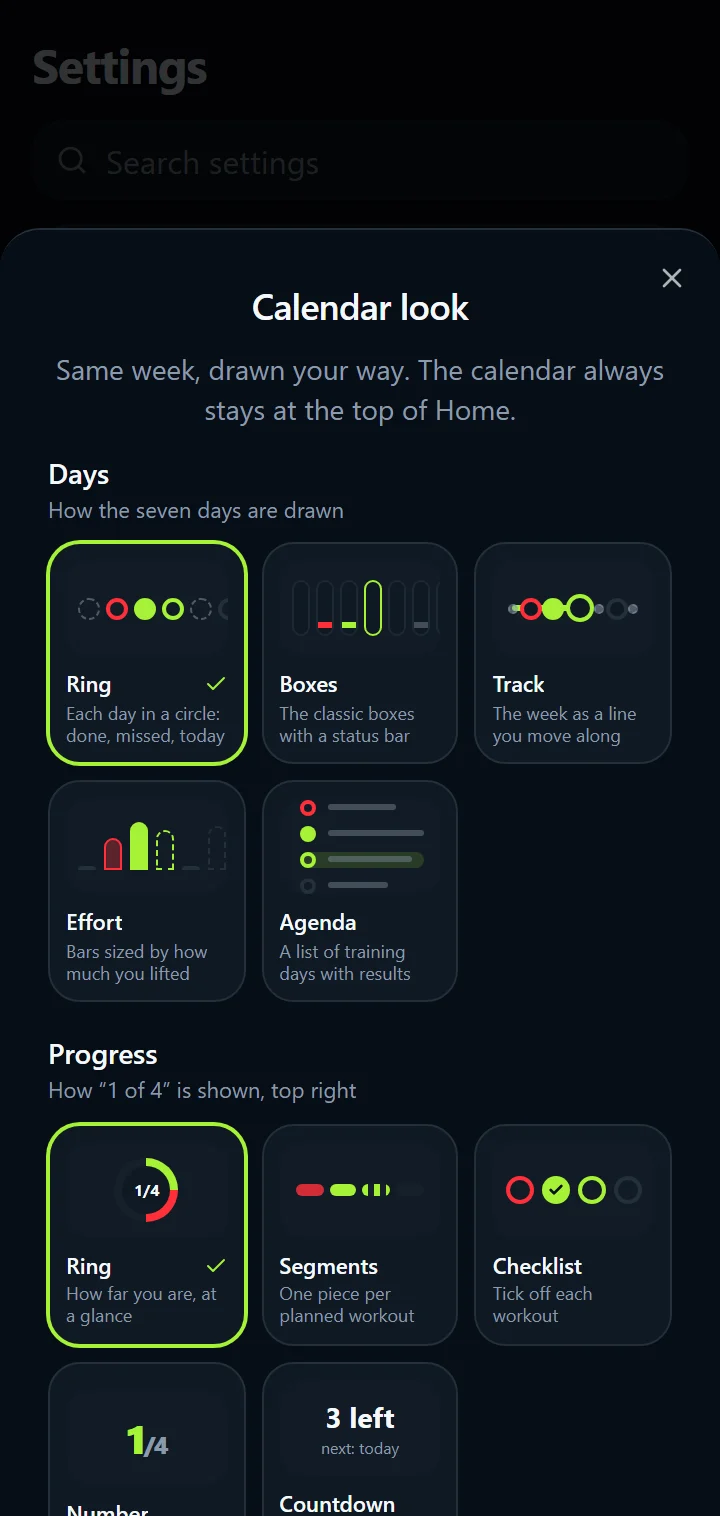
The calendar always stays at the top of Home, but you choose how it is drawn. Open Settings → Calendar look, or the calendar icon in the Customise bar, and pick three things:
- Days: Ring (each day in a circle), Boxes (the classic boxes with a status bar), Track (the week as a line that fills up to today), Effort (a bar per day, as tall as what you lifted) or Agenda (a list of training days with their results).
- Progress: a Ring, Segments (one piece per planned workout), a Checklist, a big Number, or a Countdown (“1 left · next: today”).
- Greeting: today's date, your name, or none.
Every style keeps the same marks and the same day panel, and changes apply as you tap. Calendar look works during the free trial and in the full version.
Drag, resize, add, remove
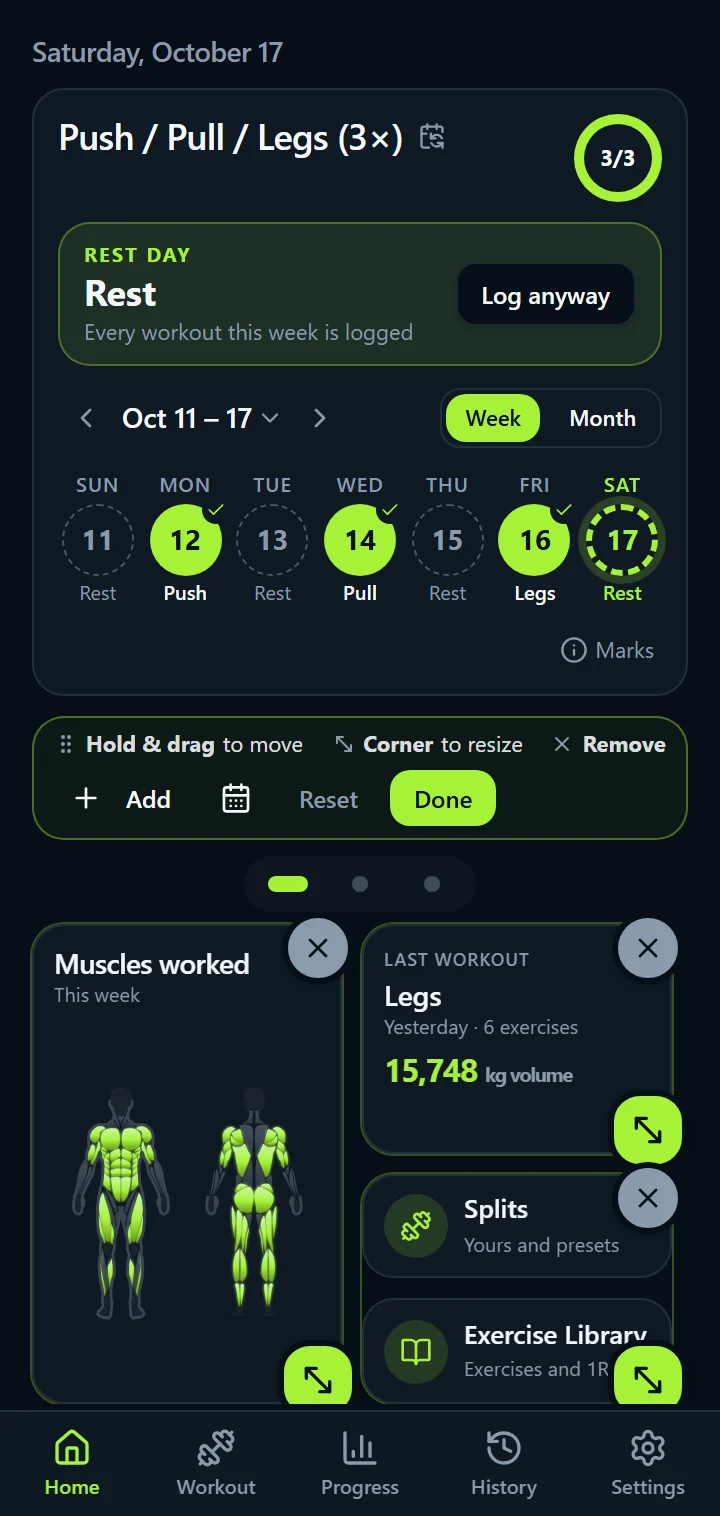
Tap the round dashboard button right of the page dots, or hold a widget for a moment. Every widget gets an × to remove it and a ↘ corner handle to resize it, and the bar at the top names the three gestures.
- Move: hold a widget for half a second until it lifts, then drag. A dashed outline shows where it will land, and a label under your finger says at what size. A quick swipe still scrolls the page or moves to the next page.
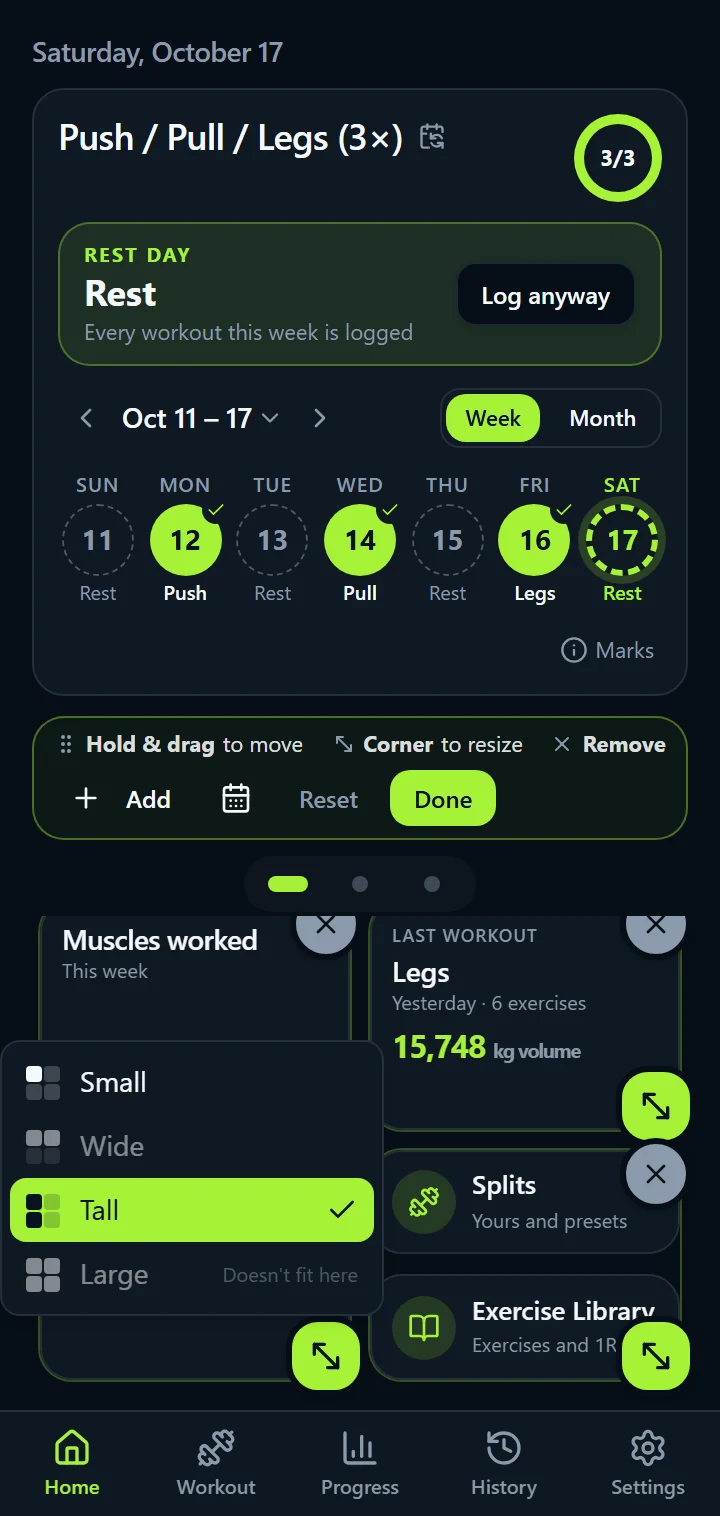
- Resize: drag the corner handle, or tap it for the list of sizes the widget has: Small, Wide, Tall or Large. Every widget is designed for each of its sizes, and bigger widgets show more.
- Another page: rest a lifted widget at the left or right edge and the next page slides in. Drop it there.
- Add and remove: Add lists every widget, including one that is on another page (tap it to move it here). Removing shows Undo for five seconds.
Widgets that fill the space
Drop a widget next to a tall one and rest for a moment: it offers to grow and fill the free half, with the label saying Tall · fills the space. Move a little and it keeps its size. The other widgets slide aside as you go, so the page never has holes.
A tall Muscles worked widget shows a bigger body map; a large Muscle Balance puts the chart across the full width with the numbers under it; a wide exercise chart shows the trend line, axis and time range. Small widgets keep the name, one line saying what the number is, and the number.
How to customise Home, step by step
- Open Home and tap the round dashboard button right of the page dots (full version), or hold any widget.
- Tap × on the widgets you don't want. Undo appears for five seconds if you change your mind.
- Tap Add to add a widget, or to move one over from another page.
- Hold a widget until it lifts, drag it where you want it, and let go. Rest it at a page edge to carry it to the next page.
- Tap a widget's ↘ handle and pick Small, Wide, Tall or Large, or drag the handle.
- Tap Done. Your layout is saved on your phone and included when you export your data.
Reset puts the default widgets back on all three pages, after asking. Keyboard users can move a focused widget with the arrow keys.
Part of the full version
The 7-day free trial includes the whole workout tracker with the default Home. The one-time purchase (€6.99 on Google Play) adds arranging Home's widgets, the eight accent colours, share cards, and export and import of your data. There is no subscription. Read how the trial and the purchase work.
Customizable Home questions
Can I customise Home during the free trial?
You can pick your calendar look during the trial. Arranging the widgets is part of the full version: during the trial you get the default widgets on all three pages, and tapping the dashboard button shows what the full version adds. After the one-time purchase your arrangement is saved with your settings and included in exports.
What if I make a mess of it?
Tap Reset in the Customise bar to put the default widgets back on all three pages. Removing a single widget shows an Undo button for five seconds, and any widget you removed can be added again from Add. The calendar look changes back the same way it changed: pick Ring and the date greeting in Calendar look.
Are these Android home screen widgets?
No. IronBuddy's widgets live on its own Home screen, the first tab inside the app. They are arranged on three swipeable pages that always fit your screen, so there is nothing to scroll and nothing to install on the Android launcher.
Get IronBuddy on Google Play
Free to download with a 7-day free trial. After the trial, pay €6.99 once to keep it all unlocked. No account, no ads, no subscription.